Set up Wi-Fi on an iPhone or iPad
Takes about three minutes. You need your WRA username and password.
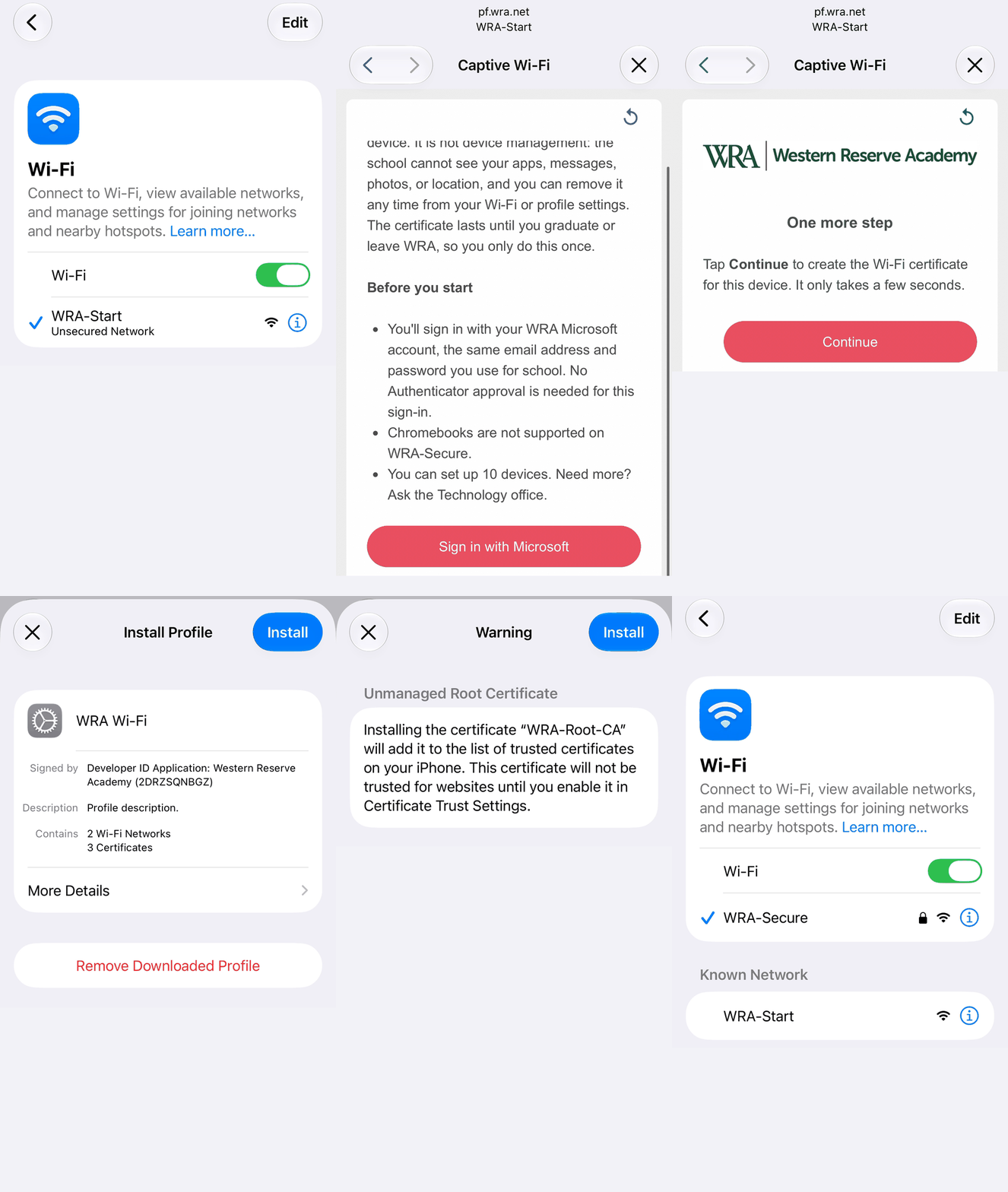
1. Join WRA-Start
Open Settings → Wi-Fi and tap WRA-Start. There is no password.
Within a few seconds a sign-in window opens by itself.
If the window doesn't appear after about ten seconds: tap the small (i) next to WRA-Start, then tap < Wi-Fi at the top left to go back to the list. The window usually opens right after that.
2. Sign in
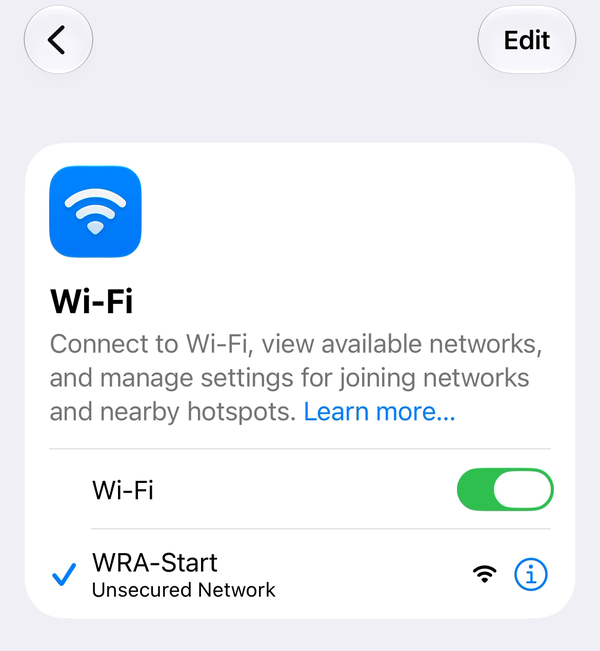
Read the short acceptable-use note, scroll to the bottom and tap I accept the terms.
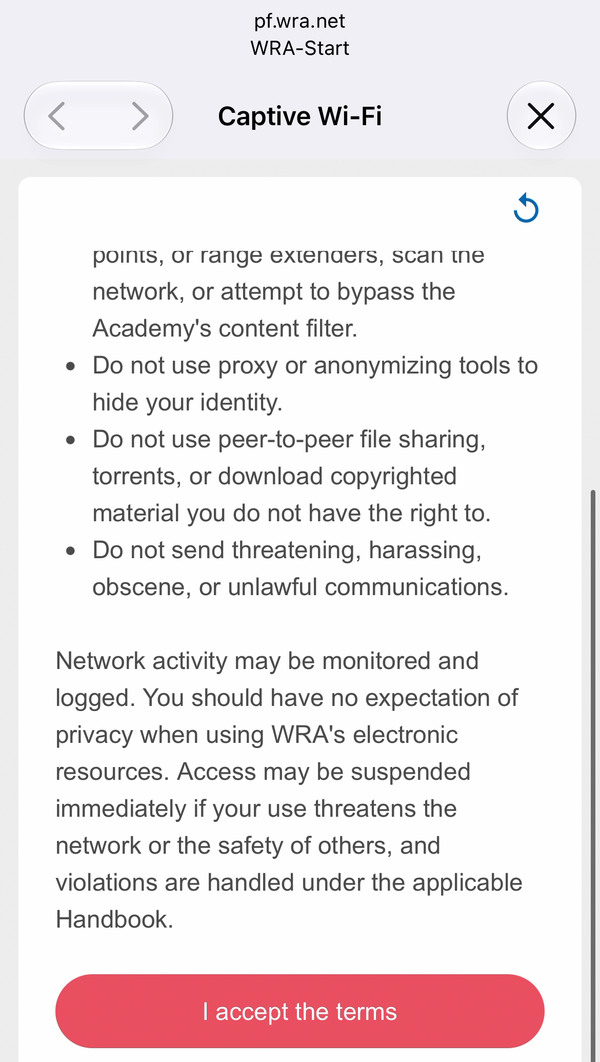
Tap Employee/Student Login.
The next page explains what the setup does. Tap Sign in with Microsoft.
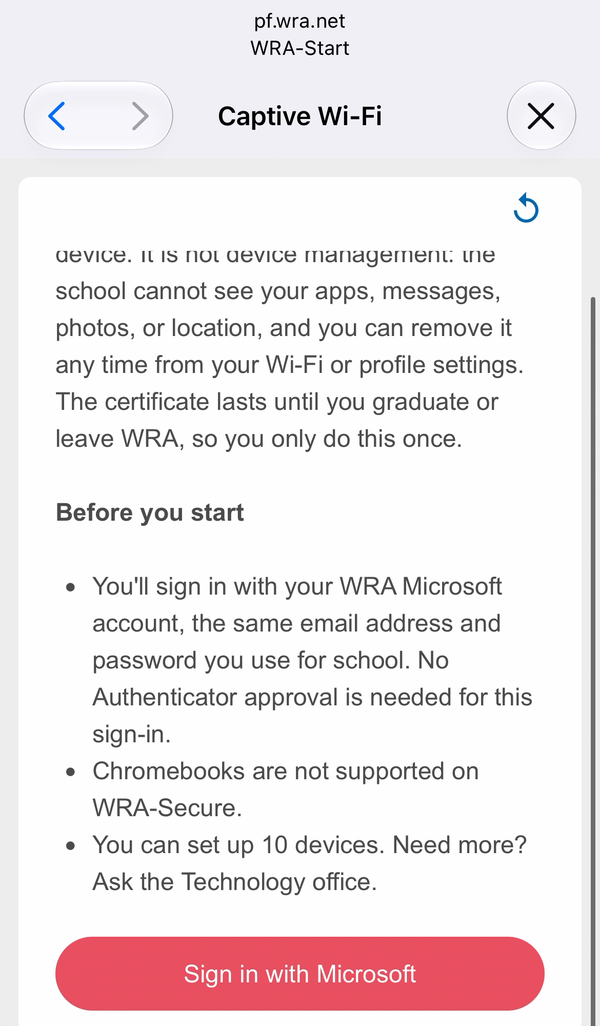
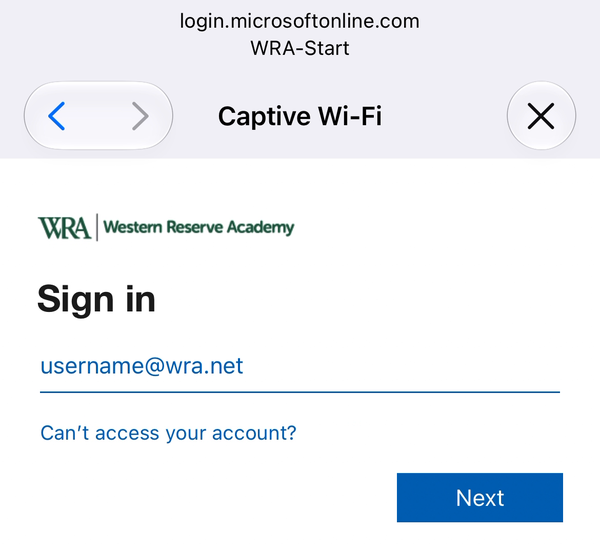
Sign in with your WRA email address and password, for example ellsworthj@wra.net. You will not be asked for an Authenticator code here. If it asks Stay signed in?, either answer is fine.
3. Create the certificate
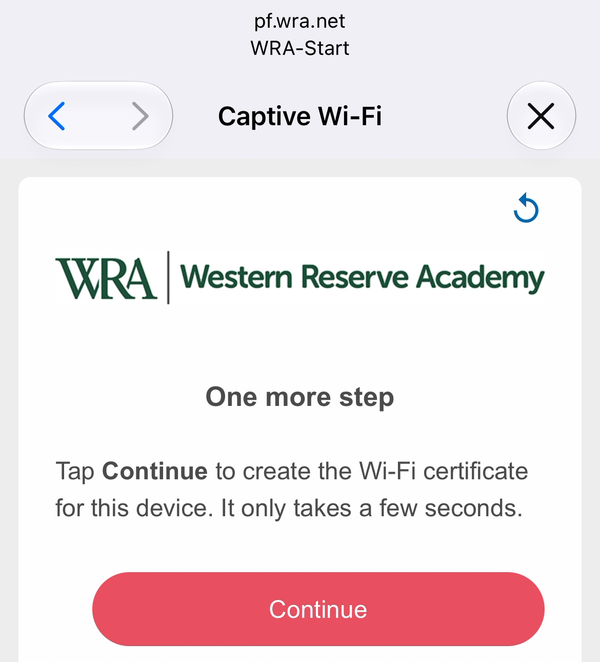
On the One more step page, tap Continue. This creates the certificate for this device.
4. Download the Wi-Fi profile
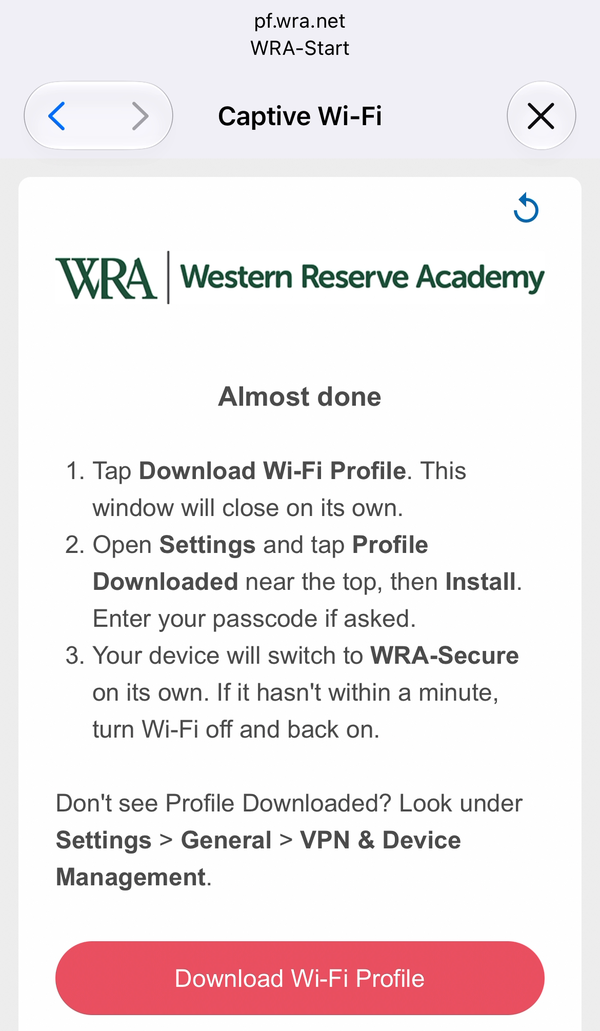
On the Almost done page, tap Download Wi-Fi Profile. A Profile Downloaded message appears; tap Close. The sign-in window closes on its own; that is normal.
5. Install it
Open Settings. Near the top you'll see Profile Downloaded. Tap it.
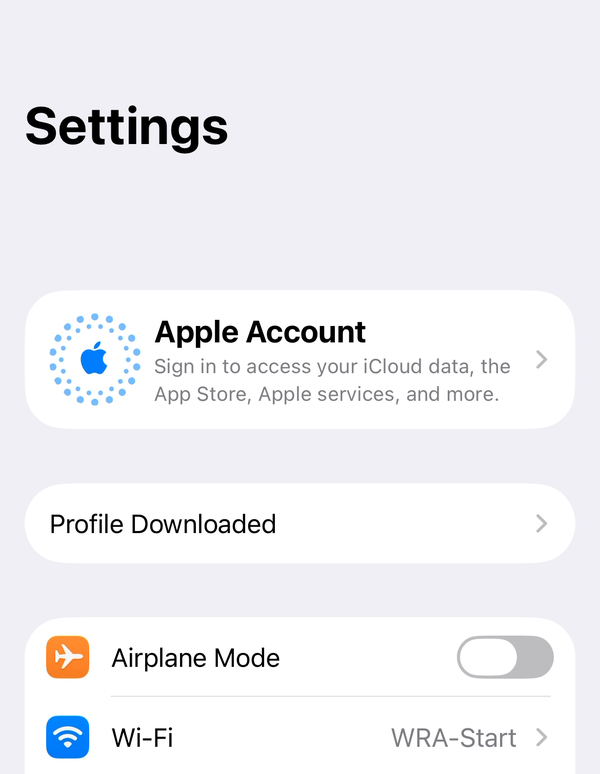
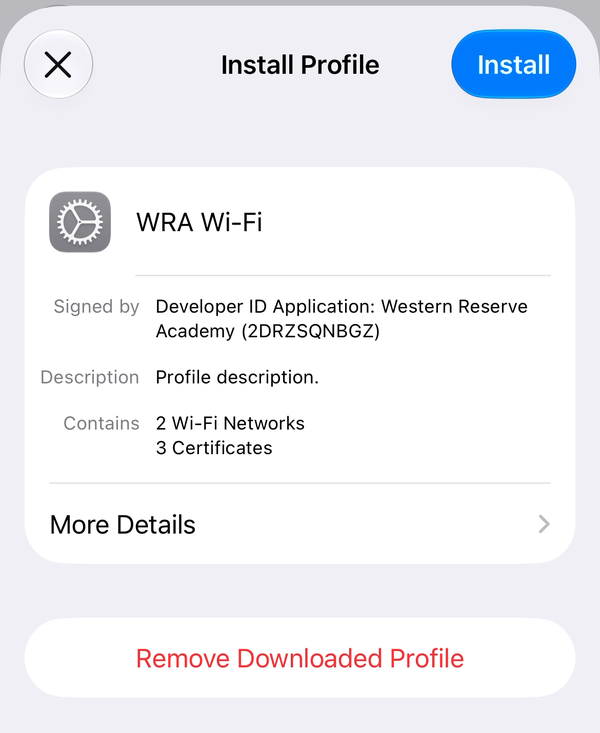
Check that it says Signed by … Western Reserve Academy, then tap Install and enter your passcode.
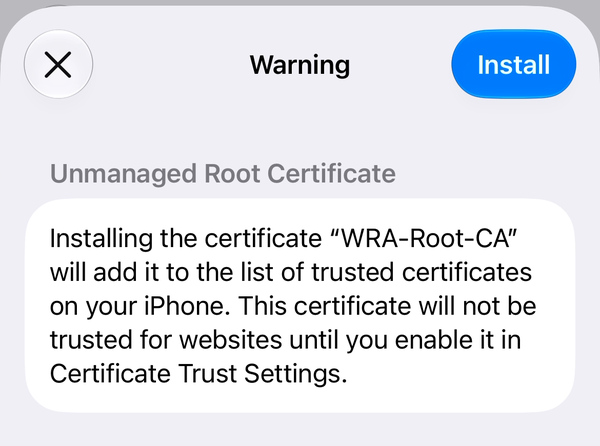
A Warning screen explains that the profile adds the WRA-Root-CA certificate. Tap Install, then tap Install once more to confirm. This certificate only lets your device recognize the WRA Wi-Fi network. WRA does not use it to filter, inspect or interfere with anything you do online.
When it says Profile Installed, tap the checkmark or Done.
6. Done
Your device switches to WRA-Secure within a few seconds. Check Settings → Wi-Fi: it should say WRA-Secure with a checkmark. If it hasn't switched after a minute, turn Wi-Fi off and on.
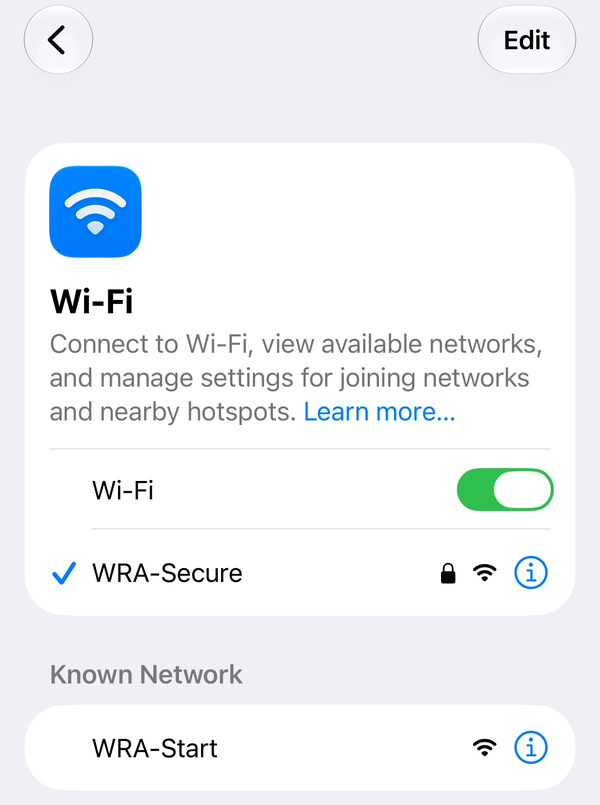
That's it. From now on the device joins WRA-Secure on its own, including after restarts and when you come back to campus.
Good to know
- You don't need to forget WRA-Start on iPhone or iPad. The profile tells your device not to join it automatically.
- If you ever get a "This device is already set up" page on WRA-Start, just pick WRA-Secure in your Wi-Fi list.
- To see or remove the profile later: Settings → General → VPN & Device Management → WRA Wi-Fi.
- Got a new phone? Run these steps again on the new one. The old phone's certificate stops working when you tell the Technology office, or when it expires.
Problems? See Troubleshooting.