Set up Wi-Fi on an Android phone or tablet
Takes about three minutes. You need your WRA username and password.
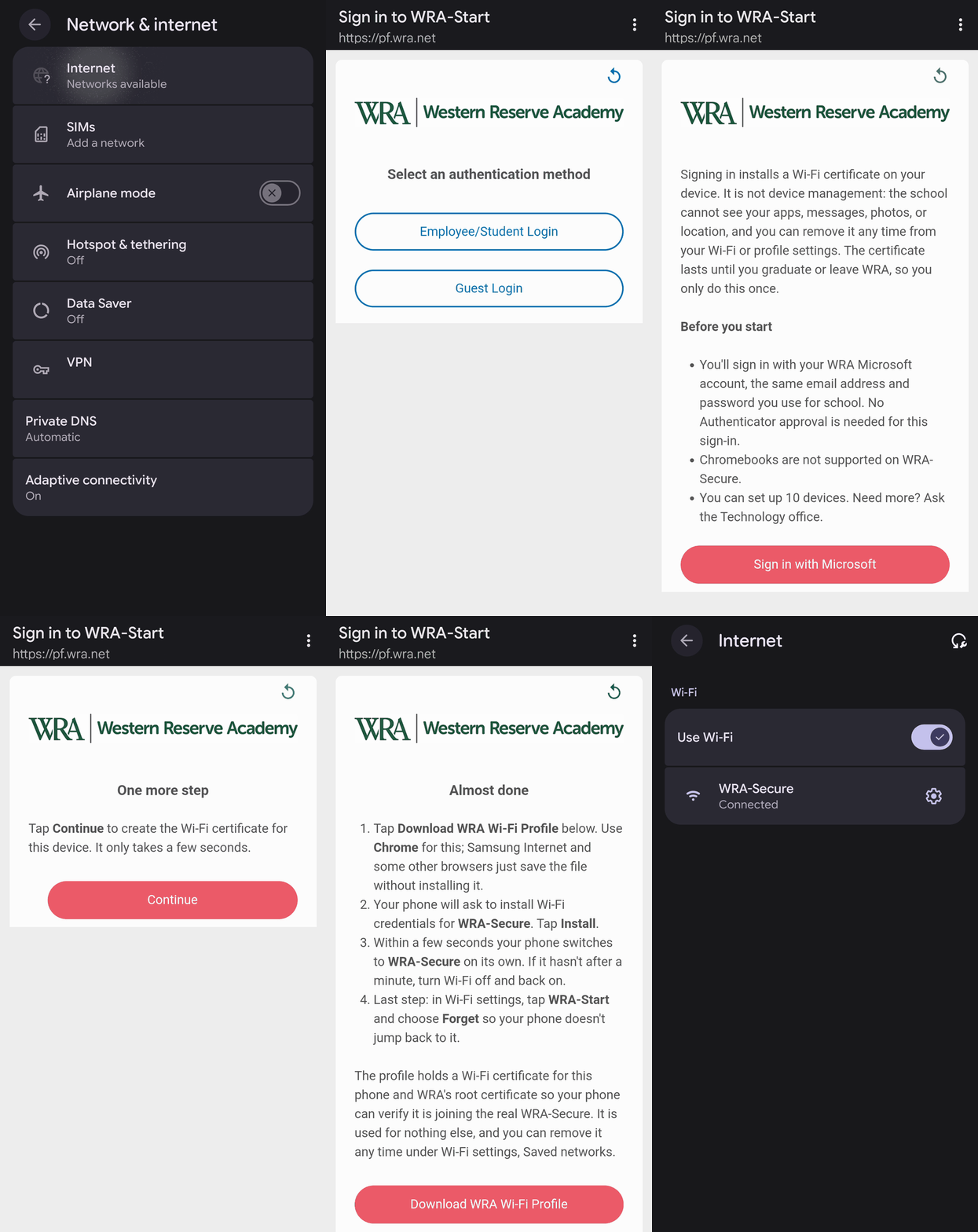
1. Join WRA-Start
Open Settings → Network & internet → Internet (on Samsung, Connections → Wi-Fi) and tap WRA-Start. There is no password.
The sign-in page usually opens by itself. If it doesn't, pull down the notification shade and tap Sign in to network.
2. Sign in
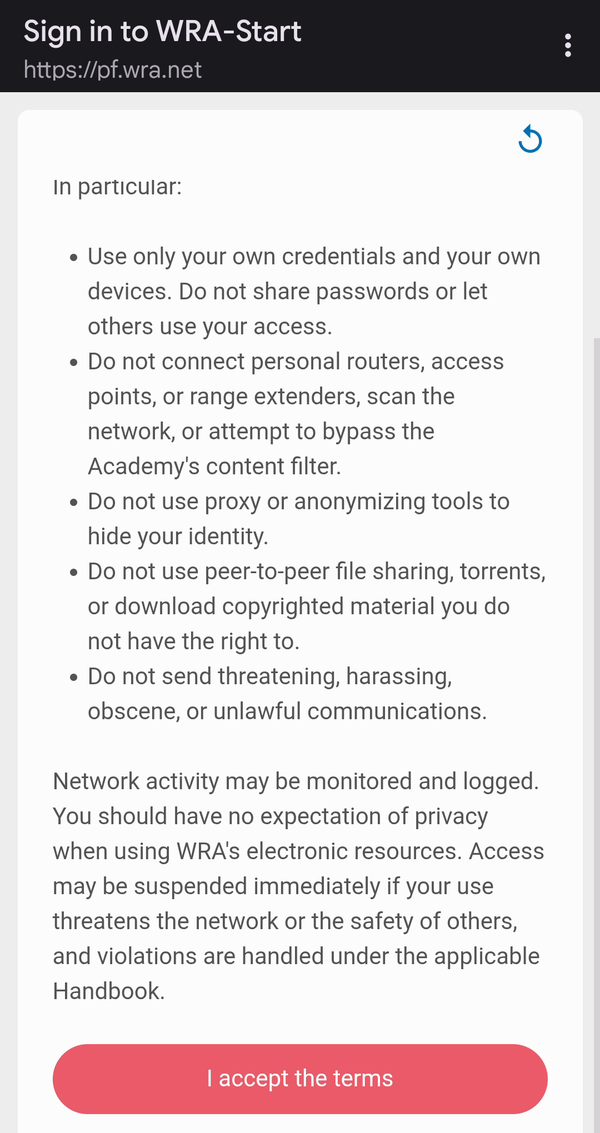
Read the short acceptable-use note, scroll to the bottom and tap I accept the terms.
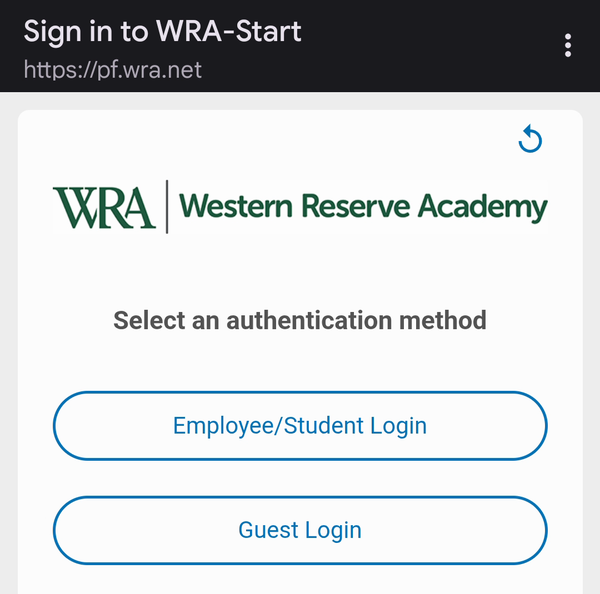
Tap Employee/Student Login.
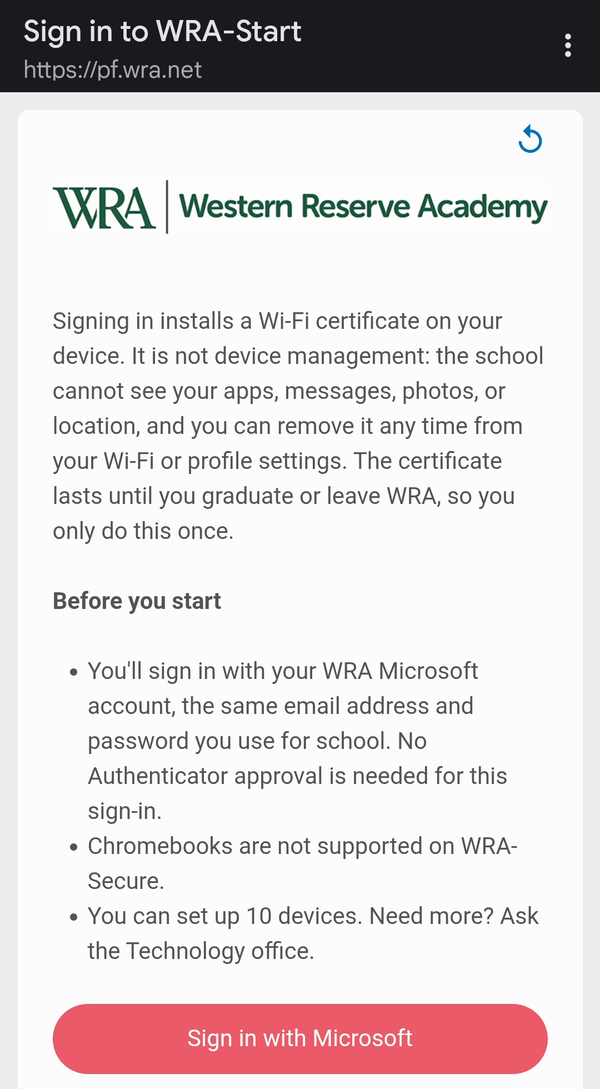
The next page explains what the setup does. Tap Sign in with Microsoft.
Sign in with your WRA email address and password, for example ellsworthj@wra.net. You will not be asked for an Authenticator code here. If it asks Stay signed in?, either answer is fine.
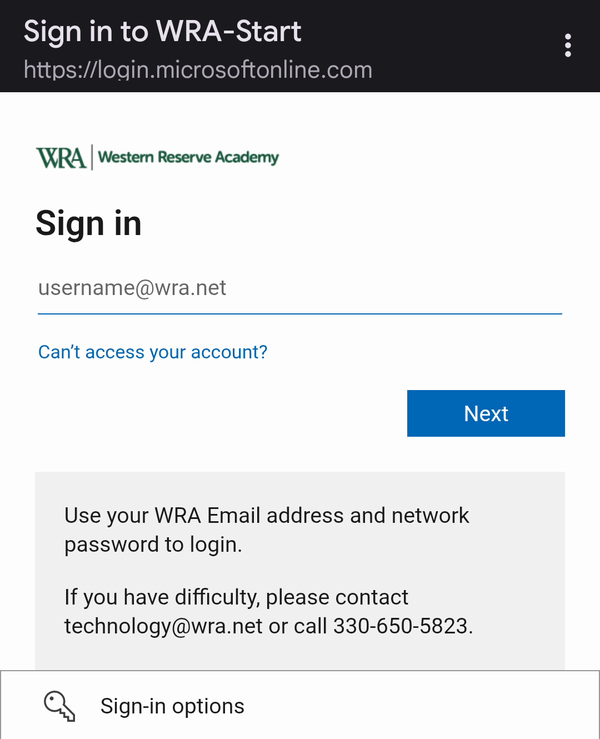
3. Create the certificate
On the One more step page, tap Continue.
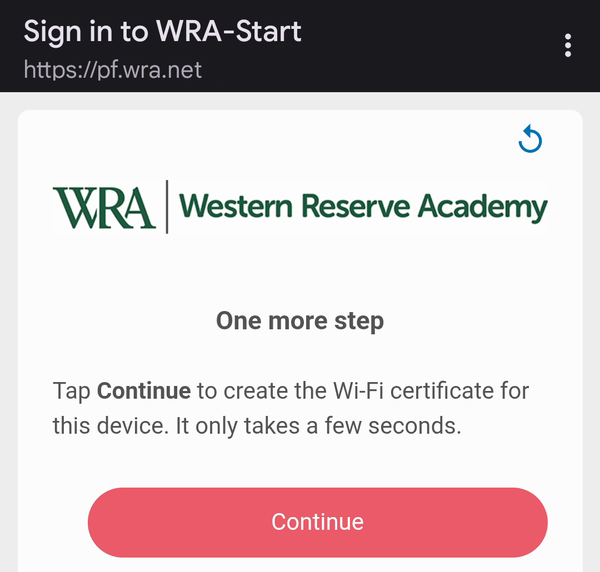
4. Download the Wi-Fi profile
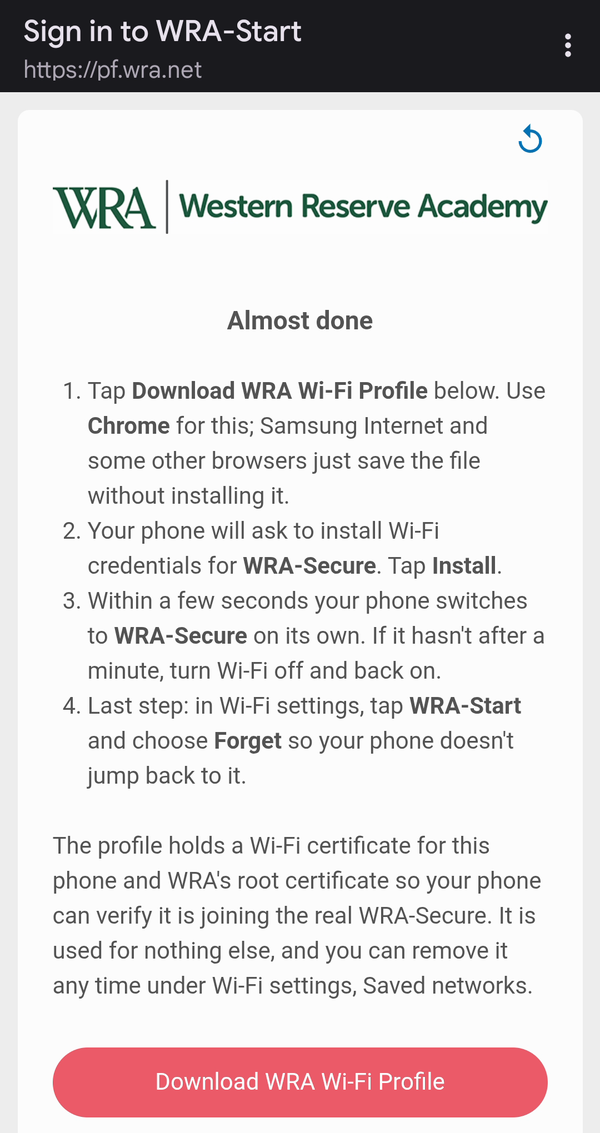
On the Almost done page, tap Download WRA Wi-Fi Profile.
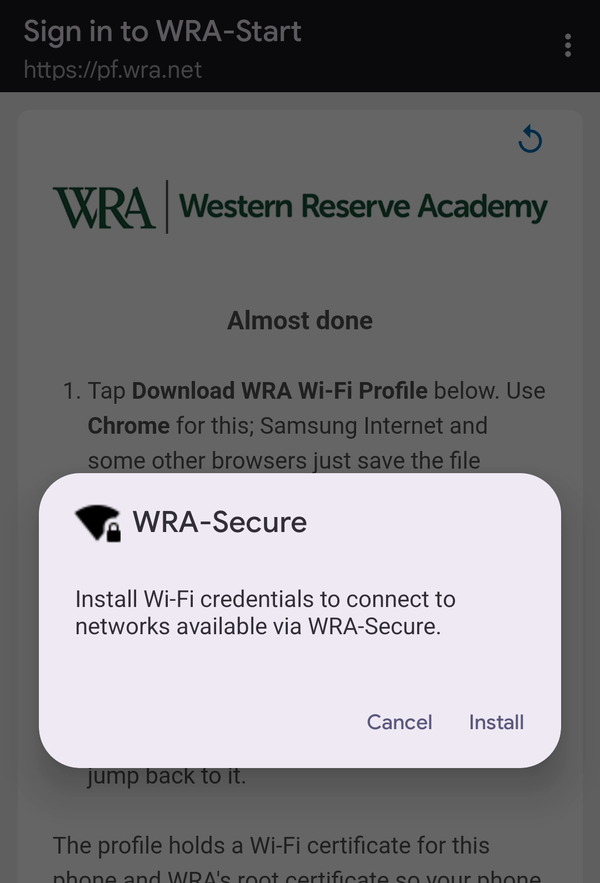
Android shows a box for WRA-Secure: "Install Wi-Fi credentials to connect to networks available via WRA-Secure." Tap Install.
If tapping the button only saves a file and no box appears: the page is open in a browser that can't install Wi-Fi profiles (Samsung Internet and Firefox do this). Copy the page address, open it in Chrome and tap the button again.
5. Done
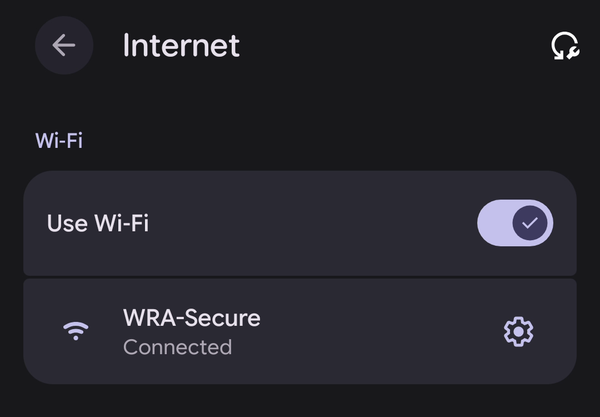
Your phone connects to WRA-Secure within a few seconds. Check the Wi-Fi list: WRA-Secure should say Connected.
6. Last step: forget WRA-Start
Android sometimes prefers a network you joined by hand over one it learned from a profile. To stop your phone from drifting back to WRA-Start, tap WRA-Start in the Wi-Fi list (or the gear next to it) and choose Forget.
From now on the phone joins WRA-Secure on its own.
Good to know
- What you installed is a Wi-Fi profile (Android calls it a Passpoint or Hotspot 2.0 profile). It contains the certificate for this phone and the WRA-Secure settings, nothing else.
- To see or remove it later: Settings → Wi-Fi → Saved networks (on some phones Wi-Fi preferences → Advanced → Passpoint). Removing it means running the setup again next time.
- If you ever get a "This device is already set up" page on WRA-Start, just pick WRA-Secure in the Wi-Fi list and forget WRA-Start.
Problems? See Troubleshooting.